
Updated on July 24, 2026
Configuring your fax machine for reliable sending requires precise hardware connections, careful initial setup, and a clear understanding of troubleshooting common issues that arise. Getting these steps right ensures your important documents transmit without error in 2026.
Key Takeaways:
- Proper setup for a traditional fax machine includes connecting power and a telephone line, loading consumables, and programming essential settings like your fax header.
- Faxing from a printer requires verifying its fax capability, connecting it to a telephone jack, installing drivers, and configuring settings through its software.
- Troubleshooting common fax problems often involves checking physical connections, confirming dial tone, cleaning components, and updating firmware before considering professional service or an upgrade.
How to Set Up a Traditional Fax Machine?
Setting up a traditional fax machine starts with ensuring it has a stable foundation and the necessary connections to function correctly. Without these basic steps, your machine will not be able to send or receive documents reliably.
Connecting Your Fax Machine Hardware
Position the fax machine on a flat surface, close to both a power outlet and an active telephone line jack. Connect the power cable to the machine and then to the wall outlet to provide stable power. For communication, take one end of a telephone cable and insert it into the fax machine’s ‘Line’ jack; the other end plugs directly into your telephone wall socket, establishing the necessary communication pathway.
Beyond power and line connections, physical components like ink or toner cartridges are essential. Insert these printing consumables according to your machine’s manual, then load the paper into the tray, making sure it is the correct size and type specified for your model to prevent jams and ensure clear prints.
Initial Configuration and Header Setup
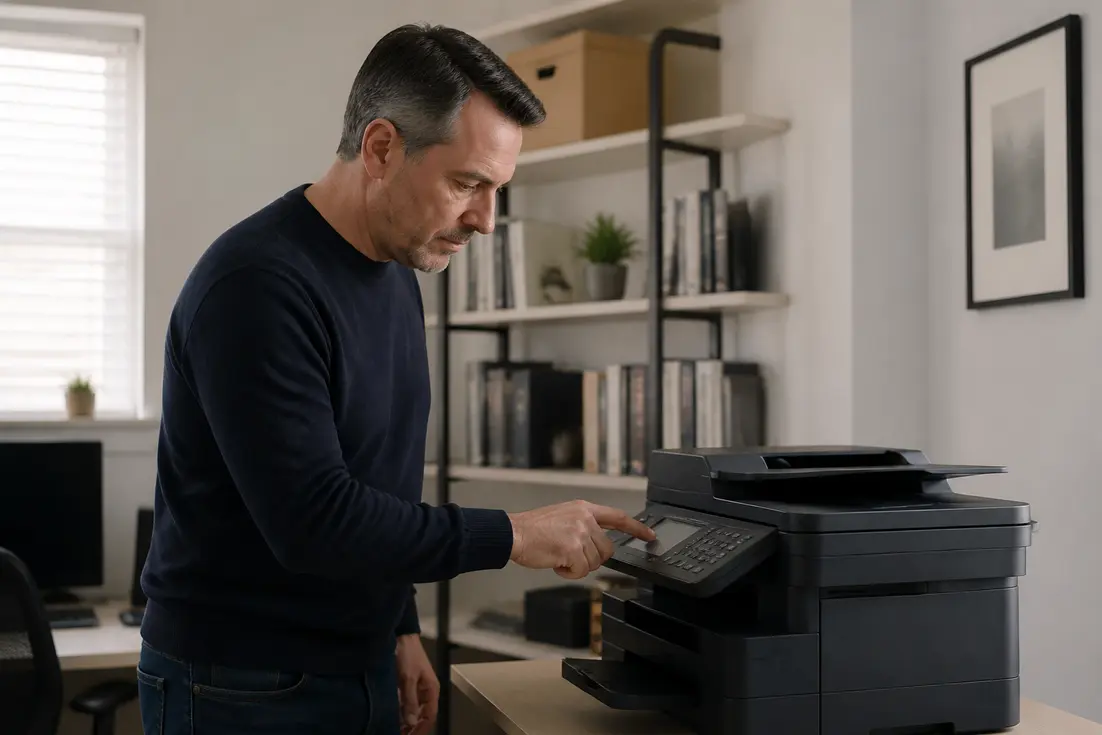
Once connected and loaded, power on your fax machine. Navigate through the control panel to access the setup mode. This is where you will input your fax number, which is crucial for identifying your outgoing transmissions and receiving incoming ones. Additionally, adjust settings such as transmission speed, resolution, and the number of rings before the machine answers.
Program your fax header. This header is a line of text that appears at the top of every page you send, typically displaying your name or company and your fax number. Configure this through the basic settings menu to ensure professional and identifiable outgoing faxes.
Performing a Test Fax to Confirm Operation
After completing all hardware connections and initial settings, perform a test fax. Send a test document to a known, working fax number to confirm that your machine can transmit pages successfully. Following this, have someone send a fax to your machine to verify its receiving capabilities, ensuring both inbound and outbound functions are operational.
How to Configure Fax on Your Printer?
Many modern multifunction printers come with integrated fax capabilities, offering a more compact solution than a standalone machine. Proper configuration on a printer largely mirrors the steps for a dedicated fax machine but includes specific software and driver considerations.
Verifying Fax Capability and Connections
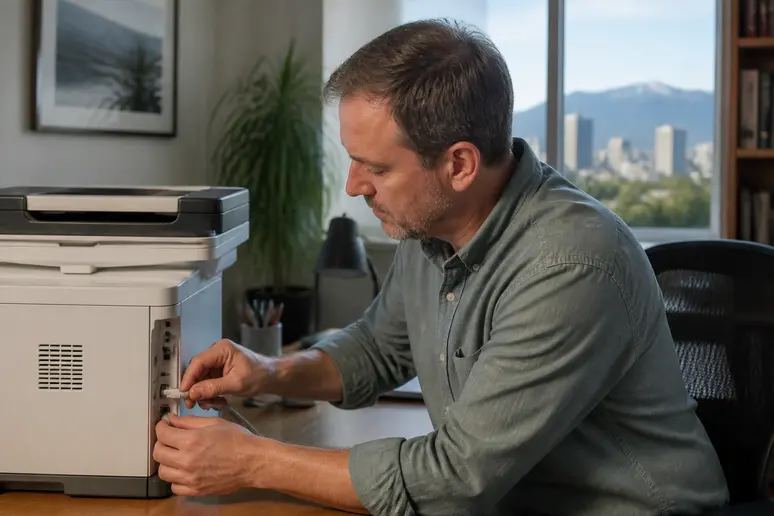
Before attempting to fax from your printer, confirm it actually possesses fax functions. Look for a ‘Fax’ button or an explicit fax option within its digital display menu. Once confirmed, connect the printer’s dedicated fax port to a telephone wall jack using a standard telephone cable. This connection is distinct from network or USB connections and is essential for sending and receiving faxes over a traditional phone line.
Installing Software and Adjusting Settings
To fully utilize your printer’s fax capabilities, install specific software or drivers on your computer provided by the manufacturer. Once installed, access the fax settings through this software. Here, you can enter your fax number and define receiving preferences, such as how many rings before the printer answers, or whether incoming faxes are printed automatically or saved digitally.
As with a standalone fax machine, ensure there is an adequate supply of paper loaded into the printer’s tray. After configuring all settings, perform a test fax to a known number to confirm that both the software and hardware are working in unison to send and receive documents correctly.
What Are Common Fax Machine Troubleshooting Steps?
Fax machines, both traditional and integrated with printers, can encounter various issues that prevent reliable operation. Addressing these problems systematically can often resolve them without needing professional intervention.
Diagnosing Connection and Dial Tone Problems
A common issue is the absence of a dial tone, which indicates a problem with the telephone line connection. First, verify that the telephone line is securely plugged into the correct ‘Line’ port on the fax machine and into the wall telephone socket. Ensure the line is active and not currently in use by another device.
If you can send but not receive, specifically check that the fax line is plugged into the receptacle labeled ‘Line’ and not ‘Tel’. If neither sending nor receiving functions, reboot the machine and listen for a dial tone using the ‘on hook’ or speaker button on the fax screen. If no dial tone persists after these steps, replace the fax line cord, as it may be faulty.
Resolving Sending, Receiving, and Quality Issues
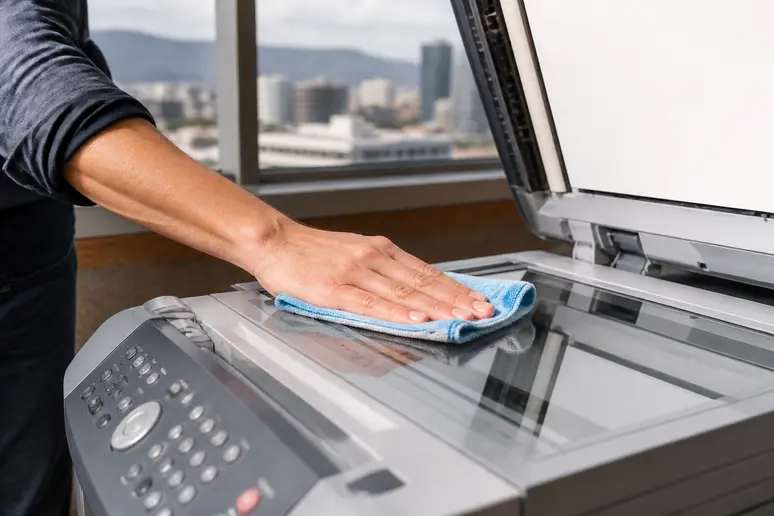
If faxes fail to send, double-check the dialed number for accuracy, including any required long-distance codes. Also, confirm the machine is in the correct dialing mode, especially if the line is shared with a voice phone. Poor quality faxes, characterized by streaky or unclear images, often stem from a dirty scanner glass; clean it thoroughly. Additionally, adjust resolution settings if they are too low, as higher resolution can improve clarity but may increase transmission time.
Addressing Error Messages and Physical Machine Problems
When your fax machine displays an error message, consult the user manual for specific codes and recommended steps. Often, a simple machine reset (powering it off and then on) can clear minor software glitches. For persistent or hardware-related issues, a factory reset might be necessary, though this will erase all stored settings.
Frequent paper jams can be mitigated by ensuring paper is loaded correctly, inspecting rollers for wear, and carefully removing any jammed sheets without tearing them. Overheating requires proper ventilation, placement away from heat sources, and allowing the machine to cool down before restarting.
Essential Maintenance for Reliable Fax Performance
Regular maintenance ensures reliable fax performance. This includes routinely cleaning external and internal components, such as the scanner glass and paper trays. Always use quality paper that is free of dust or tears, and promptly replace consumables like ink or toner when prompted.
Updating the firmware from the manufacturer’s website can prevent compatibility and performance issues with newer operating systems or network configurations. If, after all troubleshooting steps, the phone provider confirms the line is functional but issues remain, a servicing technician may be required, potentially leading to machine repair or an upgrade.
Can You Fax Without a Traditional Phone Line?
For many businesses, relying on a traditional phone line for faxing can be cumbersome and costly in 2026. Online fax services provide a modern alternative, allowing you to send and receive documents without a physical fax machine or a dedicated landline.
Exploring Online Fax Services
Online faxing services enable you to send and receive faxes directly from various devices, including computers, smartphones, or tablets. This method converts documents into digital files that are then transmitted over the internet as faxes, bypassing the need for a traditional analog phone line. This can streamline workflows, especially for businesses that have moved away from landlines entirely.
The core advantage lies in flexibility; you can manage faxes from anywhere with an internet connection. This eliminates the maintenance and supply costs associated with physical machines, and it can often integrate more seamlessly into modern digital document management systems, aligning with evolving business needs.
Getting Started with an Online Fax Provider
To use an online fax service, you typically sign up with a provider that offers digital faxing solutions. These services usually provide you with a dedicated fax number that operates virtually. For example, Fax Burner offers a free 24-hour fax number through its app, which is useful for occasional or urgent needs. For more consistent use, premium plans are available from various providers, offering features like higher page limits, longer retention periods, and additional user accounts.
Getting started involves selecting a plan, setting up your virtual fax number, and then using the service’s web interface or app to upload documents for sending or to view incoming faxes. The setup process is generally straightforward, focusing on digital integration rather than physical hardware.
FAQ
How to configure eFax?
Configuring an eFax service involves signing up with an online fax provider, which will typically assign you a virtual fax number. You then use their web platform or mobile app to manage faxes, uploading documents to send and receiving incoming faxes directly to your digital inbox without any physical machine or phone line.
What are the disadvantages of fax?
The primary disadvantages of traditional faxing include the need for a dedicated phone line and a physical machine, which incurs hardware, maintenance, and supply costs (paper, ink/toner). It is also less secure and efficient than digital alternatives, lacks advanced features like searchable text, and is less convenient for remote work environments in 2026.
Why is my fax not connecting?
A fax machine that is not connecting often indicates an issue with the telephone line. Verify the phone cable is securely plugged into the ‘Line’ port on the fax machine and into an active wall jack. Check for a dial tone by pressing the ‘on hook’ or speaker button. If there’s no dial tone, try replacing the phone cord or testing the line with a regular phone to rule out an issue with the service itself.
Can you connect a fax machine to a regular phone line?
Yes, you can connect a fax machine to a regular phone line, but ensure the line is not being used by another device simultaneously when sending or receiving faxes. Many fax machines have settings to detect a voice call and automatically switch to fax mode after a certain number of rings if the line is shared.
Can I fax from my printer if I don’t have a landline?
No, if your printer’s fax function relies on a traditional phone line, you cannot use it to fax without a landline. However, if your printer supports online fax services or you use a separate online fax provider, you can send faxes through your computer or mobile device over the internet, effectively bypassing the need for a physical landline connection to the printer itself.